Every customer interaction creates an opportunity to move a relationship forward. But getting there takes more than keeping records updated. Teams need the right context, a clear view of their priorities, and tools that help turn decisions into action.
Salesmate’s October 2026 release brings together AI Studio, the Salesmate 4.0 design experience, updated Custom Views, Conversation Routing, IVR, and Call Conferencing.
These updates help teams prepare for customer interactions, delegate repeatable work, and coordinate the next step from within their CRM.
Here’s what’s new in Salesmate and how each update fits into the way your team works.
Introducing Salesmate 4.0
A lead needs qualifying. A lost deal needs reviewing. An incoming call needs to reach the right person. These are different tasks, but they all depend on having the right tools and information at the right moment.
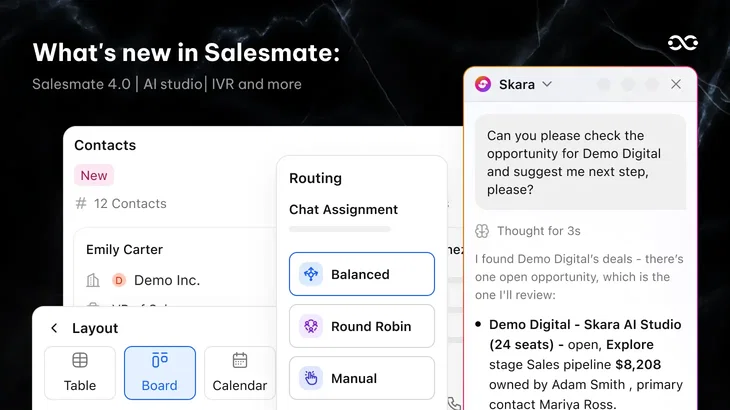
Salesmate 4.0 brings these everyday needs into one connected experience. With Skara and AI Studio, teams can interact with AI, run task-specific agents in the background, or use Smart Flow to trigger agents based on schedules, events, and conditions.
Salesmate 4.0 is one of our biggest releases yet, bringing together new ways to use AI, a simpler CRM experience, and better tools for managing customer conversations.
The refreshed design language and Custom Views make it easier to navigate CRM work and organize records around your needs. Conversation Routing, IVR, and Call Conferencing help teams direct conversations, guide callers, and bring the right people into a call.
AI Studio brings agents into everyday CRM work
AI Studio is where you create and manage AI agents for specific business tasks. Give an agent a clear job, configure the information and tools it needs, and choose how your team will use it.
Some work benefits from a conversation. Other work is ready to delegate. Recurring jobs can become part of an automated process.
Talk with Skara when you need help in the moment
Before a customer meeting, you want to understand the account without reading every note and email.
Ask Skara AI to summarize available CRM context, explore the details that need attention, and help prepare your questions. Afterward, use that context to draft a follow-up.
Your team can ask questions, summarize customer information, draft responses, and take approved actions through conversation. You stay involved as the work develops, with help turning information into a useful next step.
Spend less time catching up and more time preparing for a meaningful customer conversation.
Run a background agent when you know the job
Some tasks have a clear starting point and an expected result.
Run a task agent from a CRM record, list, or workspace action, provide the required inputs, and let it handle the configured work in the background.
For example, a lead qualification agent could assess available lead information against your criteria, explain its assessment, and recommend what should happen next. Where its tools and policies permit, it could also create a follow-up task or update a record.
Other agents could prepare account briefs, review inactive opportunities, or identify accounts that need attention.
Give repeatable work a consistent process, so every teammate doesn’t have to start from scratch.
Use smart automation flows when work should happen automatically
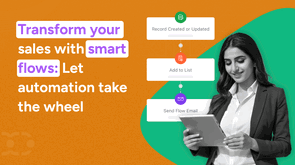
Connect task agents to Smart Flow when a job should run on a schedule or in response to a trigger or condition.
Imagine starting Monday with a review of last week’s lost deals ready for your attention.
An agent could review opportunities marked as lost, examine the CRM information and interaction history available to it, and prepare a summary of recurring objections and potential gaps. Your manager can then decide what deserves a closer look.
You define the task and connect it to a weekly Smart Flow. The output can inform or trigger subsequent steps, such as creating a task to investigate a recurring issue.
The agent handles the interpretation and preparation. Smart Flow determines when it runs and how its output fits into the process you configure.
Build agents with your expertise and business context
An agent becomes more useful when it understands the job, has relevant information, and can use the right tools.
Create an agent from scratch or customize a starting point from the Agent Library. Define its instructions, choose its capabilities, and configure who can use it.
Four building blocks help you shape that agent around your business.
| Building block | What it provides | Example |
|---|
| Skills | Reusable instructions and guidance for a particular kind of work | A lead qualification skill that structures an assessment. |
| Knowledge | Approved information about your company’s approach | Qualification criteria, product documentation, or a renewal playbook. |
| Tools | Capabilities to retrieve information or take action | Search CRM records, create tasks, update fields, or draft emails. |
| Connectors | Access to tools from connected applications | Use an available connected-app tool as part of a configured task. |
For a qualification agent, your instructions define the job. A skill guides the assessment, your knowledge provides the business criteria, and tools let the agent retrieve information and perform permitted actions.
Connecting an application does not give every agent unrestricted access to it. You choose which tools are available, and their use remains subject to applicable access and action policies.
Delegate work while keeping your team in control
As agents take on more work, your team needs clear boundaries and a way to review the results.
a. Choose what an agent can access and do
Configure the CRM information, approved knowledge, and tools available to each agent. Its work remains subject to the permissions and policies that apply to the run.
Require approval for selected actions where a person should make the final decision. For example, an agent could prepare a proposed record update for review before executing it, while other permitted actions proceed under the policies you have set.
b. Test before publishing
Use preview testing to examine an agent’s responses and proposed actions before making it available for everyday use.
Refine the instructions, context, and expected output so the agent has a clear job and your team knows what a useful result should look like.
c. Follow progress in Agent Chats
Agent Chats gives your team a place to follow runs, review outputs, and see work that failed or needs attention. Actions requiring approval can be reviewed before execution.
You can delegate the preparation while staying connected to the result.
AI Studio is available across all Salesmate plans. Running agents uses AI credits and is subject to available credits and configured usage limits.





Key takeaways
Every customer interaction creates an opportunity to move a relationship forward. But getting there takes more than keeping records updated. Teams need the right context, a clear view of their priorities, and tools that help turn decisions into action.
Salesmate’s October 2026 release brings together AI Studio, the Salesmate 4.0 design experience, updated Custom Views, Conversation Routing, IVR, and Call Conferencing.
These updates help teams prepare for customer interactions, delegate repeatable work, and coordinate the next step from within their CRM.
Here’s what’s new in Salesmate and how each update fits into the way your team works.
Introducing Salesmate 4.0
A lead needs qualifying. A lost deal needs reviewing. An incoming call needs to reach the right person. These are different tasks, but they all depend on having the right tools and information at the right moment.
Salesmate 4.0 brings these everyday needs into one connected experience. With Skara and AI Studio, teams can interact with AI, run task-specific agents in the background, or use Smart Flow to trigger agents based on schedules, events, and conditions.
Salesmate 4.0 is one of our biggest releases yet, bringing together new ways to use AI, a simpler CRM experience, and better tools for managing customer conversations.
The refreshed design language and Custom Views make it easier to navigate CRM work and organize records around your needs. Conversation Routing, IVR, and Call Conferencing help teams direct conversations, guide callers, and bring the right people into a call.
AI Studio brings agents into everyday CRM work
AI Studio is where you create and manage AI agents for specific business tasks. Give an agent a clear job, configure the information and tools it needs, and choose how your team will use it.
Some work benefits from a conversation. Other work is ready to delegate. Recurring jobs can become part of an automated process.
Talk with Skara when you need help in the moment
Before a customer meeting, you want to understand the account without reading every note and email.
Ask Skara AI to summarize available CRM context, explore the details that need attention, and help prepare your questions. Afterward, use that context to draft a follow-up.
Your team can ask questions, summarize customer information, draft responses, and take approved actions through conversation. You stay involved as the work develops, with help turning information into a useful next step.
Spend less time catching up and more time preparing for a meaningful customer conversation.
Run a background agent when you know the job
Some tasks have a clear starting point and an expected result.
Run a task agent from a CRM record, list, or workspace action, provide the required inputs, and let it handle the configured work in the background.
For example, a lead qualification agent could assess available lead information against your criteria, explain its assessment, and recommend what should happen next. Where its tools and policies permit, it could also create a follow-up task or update a record.
Other agents could prepare account briefs, review inactive opportunities, or identify accounts that need attention.
Give repeatable work a consistent process, so every teammate doesn’t have to start from scratch.
Use smart automation flows when work should happen automatically
Connect task agents to Smart Flow when a job should run on a schedule or in response to a trigger or condition.
Imagine starting Monday with a review of last week’s lost deals ready for your attention.
An agent could review opportunities marked as lost, examine the CRM information and interaction history available to it, and prepare a summary of recurring objections and potential gaps. Your manager can then decide what deserves a closer look.
You define the task and connect it to a weekly Smart Flow. The output can inform or trigger subsequent steps, such as creating a task to investigate a recurring issue.
The agent handles the interpretation and preparation. Smart Flow determines when it runs and how its output fits into the process you configure.
Build agents with your expertise and business context
An agent becomes more useful when it understands the job, has relevant information, and can use the right tools.
Create an agent from scratch or customize a starting point from the Agent Library. Define its instructions, choose its capabilities, and configure who can use it.
Four building blocks help you shape that agent around your business.
For a qualification agent, your instructions define the job. A skill guides the assessment, your knowledge provides the business criteria, and tools let the agent retrieve information and perform permitted actions.
Connecting an application does not give every agent unrestricted access to it. You choose which tools are available, and their use remains subject to applicable access and action policies.
Delegate work while keeping your team in control
As agents take on more work, your team needs clear boundaries and a way to review the results.
a. Choose what an agent can access and do
Configure the CRM information, approved knowledge, and tools available to each agent. Its work remains subject to the permissions and policies that apply to the run.
Require approval for selected actions where a person should make the final decision. For example, an agent could prepare a proposed record update for review before executing it, while other permitted actions proceed under the policies you have set.
b. Test before publishing
Use preview testing to examine an agent’s responses and proposed actions before making it available for everyday use.
Refine the instructions, context, and expected output so the agent has a clear job and your team knows what a useful result should look like.
c. Follow progress in Agent Chats
Agent Chats gives your team a place to follow runs, review outputs, and see work that failed or needs attention. Actions requiring approval can be reviewed before execution.
You can delegate the preparation while staying connected to the result.
AI Studio is available across all Salesmate plans. Running agents uses AI credits and is subject to available credits and configured usage limits.
Build an AI agent around the way your team works
Create custom agents with Skara AI Studio, equip them with your business knowledge and tools, and put repeatable CRM tasks into action.
A simpler CRM experience built for what comes next
Your CRM is where a large part of your working day happens. Finding information, organizing records, and learning new capabilities should feel straightforward.
Salesmate 4.0 introduces a refreshed design language to simplify everyday work and establish a consistent foundation for future updates.
The updated Custom Views experience is one place you’ll see that direction: a simpler way to create and work with views that fit your team’s needs.
Choose the view that helps answer your question
The way you see information changes what you notice.
During a pipeline review, a table helps you compare individual opportunities. A board changes the discussion to their progress across stages. A calendar makes timing easier to understand.
These are different perspectives on your CRM information, each useful for a different decision.
More views are planned
Table, board, and calendar are the layouts covered in this release. We plan to add more view types in future releases, building on the same design foundation.
More view types are planned for future releases, giving teams additional ways to organize and review their CRM data.
Conversation Routing reduces manual assignment
When customers reach out, someone needs to take ownership.
Conversation Routing helps distribute incoming conversations in Unified Inbox based on the eligibility, availability, and assignment settings you configure.
Choose balanced assignment to account for workload or round robin to distribute conversations in rotation among eligible teammates. If no eligible teammate can take a conversation, it remains in the relevant Inbox queue until it can be assigned.
Spend less time deciding who should respond, with a clearer process for handling incoming demand.
IVR gives callers a clearer path to your team
A customer calling about an invoice needs a different destination from someone asking about a new purchase.
With IVR in Salesmate Native Calling, you can create keypad menus that help callers choose where they need to go:
Press 1 for Sales. Press 2 for Support. Press 3 for Billing.
Start with a blank menu or a template and build the flow visually. Add greetings, capture keypad selections, connect calls, and offer voicemail where needed.
Use text-to-speech or upload your own greeting audio. Connect callers to a Salesmate user, an internal number, or an external number, and configure what happens when someone provides no input or makes an unrecognized selection.
IVR follows the business hours and holiday schedule of the Inbox associated with the phone number. Prepare changes in draft and publish them when ready; calls already in progress continue unaffected.
IVR handles keypad selections. For call handling based on what callers say, AI Pilots provide a separate way to understand voice input and route the conversation.
Give customers a clearer first step and reduce the effort of manually directing calls.
Call Conferencing brings expertise into the conversation
Some conversations need another person’s expertise.
A rep may need a specialist to answer a product question. A support teammate may need help diagnosing an issue. A customer may want another stakeholder to join before making a decision.
With Salesmate Call Conferencing, you can add internal or external participants to an ongoing call from the web application.
Speak privately with the person you’re adding before merging everyone into the conversation. If you need to hand over the call instead, use the transfer option before it becomes a conference.
Conferences currently support up to five participants, including the Salesmate user. A Salesmate user can leave while another Salesmate user remains to continue the conversation, and the conference creator can end the call for everyone.
The conference is logged as one call activity associated with the original customer, with participant details kept together. If recording was enabled on the original call, it continues into the conference.
Make the most of the new Salesmate experience
Salesmate 4.0 brings AI-powered workflows, flexible CRM views, and improved conversation and calling tools into one connected workspace.
Whether you want to delegate repeatable tasks to AI agents, organize records around your team's workflow, or route customer conversations more effectively, these updates give you more ways to get work done in Salesmate.
Ready to put these capabilities to work?
Frequently asked questions
1. What is the difference between Skara and AI Studio?
Skara is the conversational experience where your team interacts with AI. AI Studio is where you create and manage agents, configure their capabilities and access, and choose how they run.
2. Can I create an AI agent for my own business process?
Yes. Create an agent with instructions for a specific task, add relevant skills and knowledge, configure its tools and access, and test it before publishing. You can also customize a starting point from the Agent Library.
3. What is the difference between skills and tools?
Skills guide how an agent approaches a business task. Tools let it retrieve information or perform actions. Connectors make tools from connected applications available, while knowledge provides approved business information.
4. Can Salesmate AI agents run automatically?
Yes. Task agents can run through Smart Flow based on a schedule, trigger, or condition. Their inputs must be configured, and runs remain subject to applicable permissions, approval policies, and usage limits.
5. Can I approve an agent’s actions before execution?
Yes. You can require approval for selected actions, so the agent prepares the action and waits for approval before proceeding.
6. Is AI Studio included in every Salesmate plan?
AI Studio is available across all Salesmate plans. Running agents uses AI credits and remains subject to available credits and configured usage limits.
Shivani Tripathi
Shivani TripathiShivani is a passionate writer who found her calling in storytelling and content creation. At Salesmate, she collaborates with a dynamic team of creators to craft impactful narratives around marketing and sales. She has a keen curiosity for new ideas and trends, always eager to learn and share fresh perspectives. Known for her optimism, Shivani believes in turning challenges into opportunities. Outside of work, she enjoys introspection, observing people, and finding inspiration in everyday moments.